 ultimate-guide
Best Desk Setup for Remote Work: 2026 Guide
Table of Contents
- The Foundation: Ergonomic Seating and Desk Height
- Monitor Configuration and Screen Real Estate
- How to Organize Desk Cables for a Clean Workspace
- Ergonomic Home Office Essentials: Lighting, Input Devices, and Connectivity
- Minimalist Desk Setup Ideas for Small Spaces
- Best Desk Setup for Remote Work: Budget vs. Premium Tiers
- Audio Quality and Acoustic Considerations
- Conclusion
Last Updated: August 19, 2026
The Foundation: Ergonomic Seating and Desk Height
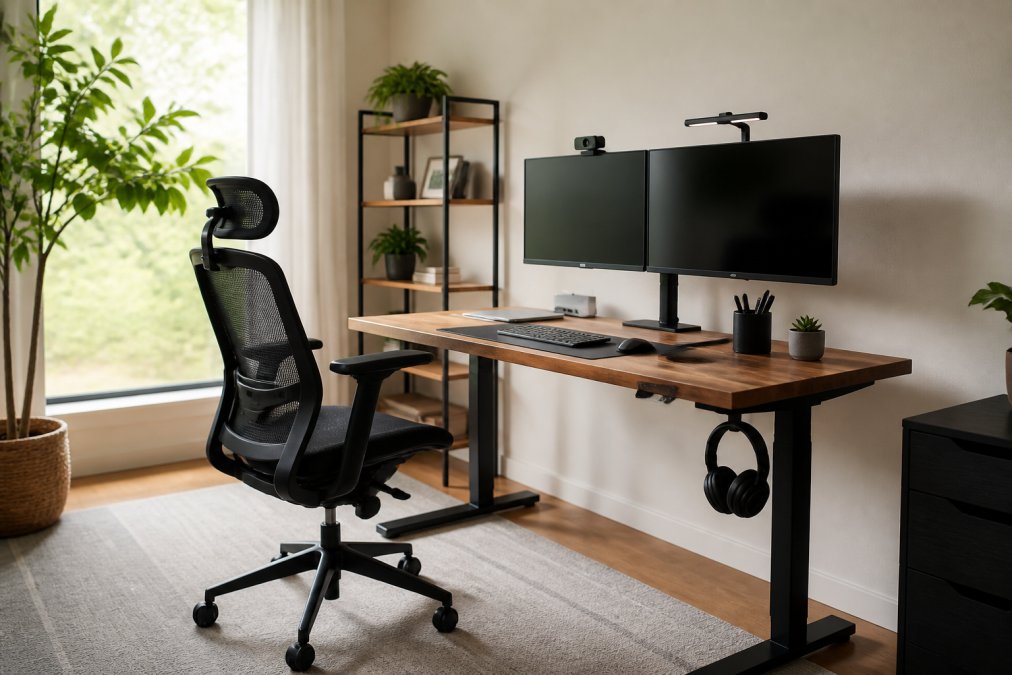
The best desk setup for remote work starts with a chair and desk that support your body, not fight it. Your spine spends eight hours a day in whatever you're sitting on, so this decision matters more than most people realize.
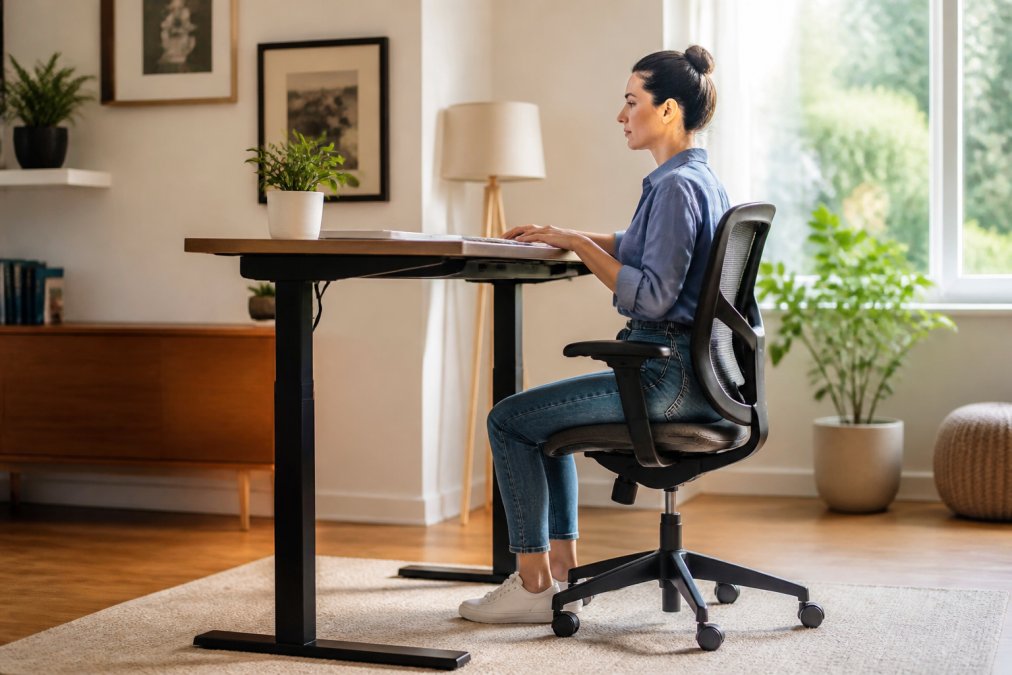
An ergonomic chair with proper lumbar support keeps your lower back aligned and prevents the creeping pain that builds over weeks of poor posture. Your feet should rest flat on the floor or a footrest, with your thighs parallel to the ground. Knees bent at roughly 90 degrees. When you slouch or perch on the edge of your seat, you're loading all that pressure onto your discs instead of distributing it across your chair's frame.
Desk height is equally critical. Your elbows should sit at 90 degrees when your hands rest on the keyboard, with your forearms parallel to the floor. Too high and you're reaching upward, creating shoulder tension. Too low and you're hunching forward, which compresses your chest and strains your neck. An adjustable-height desk solves this problem by letting you shift between sitting and standing throughout the day. Many professionals find that alternating positions every 30-60 minutes reduces fatigue and keeps blood flowing better than staying in one posture all day.
If an adjustable desk isn't in your budget, a fixed desk at the right height paired with a quality chair gets you 80% of the way there. The key is that your setup should feel invisible, you shouldn't be thinking about your body position, you should be thinking about your work.
Monitor Configuration and Screen Real Estate
Most remote workers stare at a single 24-inch monitor and wonder why their eyes feel tired by 3 p.m. The problem isn't the monitor itself, it's the lack of screen real estate and the eye strain that comes from constant refocusing.
A dual monitor setup gives you the workspace of a 49-inch ultrawide without the weird curved perspective. Your main monitor stays directly in front of you at arm's length, with your second display positioned to the side at a slight angle. This lets you reference documents, email, or communication tools without minimizing your primary work window. Content creators and developers see the biggest productivity gains here, the ability to have code on one screen and documentation on the other eliminates the constant window-switching that kills focus.
Monitor height and distance matter just as much as having two screens. The top of your monitor should sit at or slightly below eye level when you're looking straight ahead. Too high and you're craning your neck backward. Too low and you're hunching forward. A monitor arm or stand that lets you adjust height and tilt is worth the investment. Most people find that positioning monitors 24-28 inches away from their eyes reduces eye strain significantly compared to closer or farther distances.
If you're working with video calls or streaming, a quality webcam positioned at eye level prevents the unflattering downward angle that makes you look disengaged. A peripheral monitor or tablet can display video feeds or chat windows without cluttering your main workspace.
How to Organize Desk Cables for a Clean Workspace
Cable clutter isn't just ugly, it creates mental friction every time you look at your desk. Your brain registers disorder, and that background noise of visual chaos drains focus without you realizing it.
Start by inventorying what actually needs to be plugged in. Power cable for your monitor. Charging cable for your laptop or phone. Ethernet if you're not using wireless. Microphone if you're recording or streaming. Everything else should be wireless or eliminated entirely. This alone cuts your cable count by half.
Route cables behind your desk, not across the surface. A cable tray mounted underneath your desk surface or along the back collects all the power and data lines in one place. Label each cable at both ends so you know what's connected where, this saves hours of troubleshooting when something stops working. Cable sleeves or spiral wrapping bundle multiple cables together and make the whole setup look intentional rather than chaotic.
Wireless charging stations consolidate multiple devices into one spot. A 3-in-1 magnetic wireless charging station like the one from Esther Tech Shop ($69.93) charges your phone, earbuds, and smartwatch simultaneously without the tangle of individual cables. Drop your devices on the pad, and everything powers up at once. This is the kind of small change that feels luxurious until you realize it's also practical, fewer cables means less clutter, less maintenance, and less visual distraction.

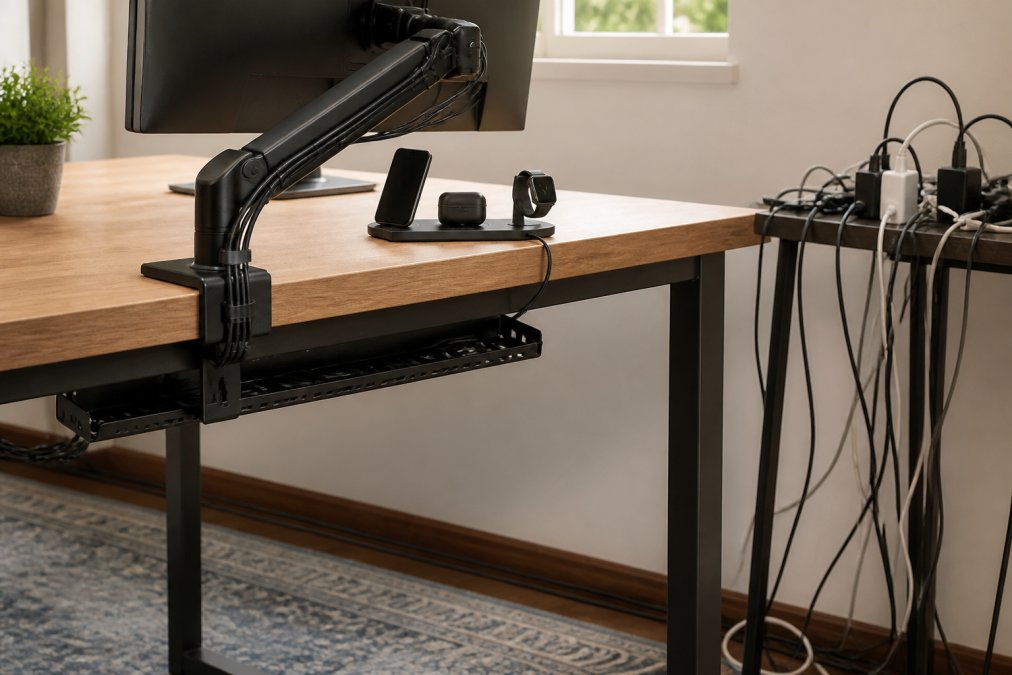
The final step is creating a "cable management plan" for any future additions. Before you plug something new in, decide where the cable goes and how it connects to your existing system. This prevents the gradual creep of disorder that happens when you just jam cables wherever they fit.
Ergonomic Home Office Essentials: Lighting, Input Devices, and Connectivity
Ambient lighting shapes how alert and productive you feel throughout the day. Overhead fluorescents create harsh shadows and can trigger headaches after a few hours. Task lighting, a focused lamp positioned to the side of your monitor, illuminates your keyboard and desk surface without creating glare on your screen. Many professionals pair task lighting with softer ambient light to reduce the contrast that strains your eyes.
Natural light from a window is ideal, but position your desk so the window is to the side, not directly behind your monitor. Direct backlighting creates a silhouette effect that makes your screen harder to see and creates eye fatigue as your pupils constantly adjust.
Your keyboard and mouse deserve more thought than most people give them. A wired USB gaming mouse like the one from Esther Tech Shop ($135.17) offers precise optical tracking and zero latency, no batteries to drain, no wireless interference to deal with. The ergonomic contour reduces wrist strain during long typing sessions.

For keyboards, mechanical switches offer tactile feedback and reduce the force needed to register each keystroke. This matters more than people realize, typing on a mushy keyboard forces you to bottom out each key, which creates repetitive strain. A mechanical keyboard with a wrist rest positions your hands properly and reduces fatigue.
Connectivity underpins everything else. Ethernet provides the most stable connection for video calls and large file transfers, but most home offices use Wi-Fi. Position your router centrally and away from obstacles. A mesh Wi-Fi system eliminates dead zones and ensures consistent bandwidth whether you're in your home office or moving around your space.
Minimalist Desk Setup Ideas for Small Spaces
A minimalist desk setup isn't about having fewer things, it's about having only things that earn their place. In small apartments or shared offices, this approach becomes essential.
Start with a single-monitor setup if space is tight. One quality 27-inch monitor provides more screen real estate than most people actually use, and it takes up a fraction of the space of a dual setup. Position it on a monitor arm that clamps to your desk, which frees up surface area underneath.
A floating desk mounted to the wall saves floor space and creates the illusion of more room. Pair it with a compact ergonomic chair that tucks completely under the desk when you're not working. This transforms your workspace from "always visible" to "put away when you're done."
Cable management becomes even more critical in small spaces because every wire is visible. Use a vertical cable management system that routes all cables down the back of your desk and into a single power strip. This keeps your small workspace looking intentional and organized rather than cramped.
Wireless devices reduce physical clutter. A wireless keyboard and mouse eliminate two cables. Bluetooth earbuds replace headphone stands. The Esther Tech Shop 3-in-1 wireless charging station consolidates three separate chargers into one compact device on your desk surface.
Storage should be vertical, not horizontal. Wall-mounted shelving above your desk holds reference materials and keeps your actual desk surface clear. A single desk organizer with compartments for pens, notepads, and small items prevents the scattered look that makes small spaces feel chaotic.
Best Desk Setup for Remote Work: Budget vs. Premium Tiers
A functional remote work desk setup doesn't require a five-figure investment. The question isn't "how much should I spend", it's "what gives me the best return on my actual work."
A budget setup (under $500) focuses on the essentials: a used office chair with lumbar support from a local classifieds site, a fixed desk at the right height, a single 24-inch monitor, and a basic keyboard and mouse. This covers the core ergonomic needs. You'll be comfortable and productive, though you'll lack some of the conveniences of a premium setup.
A mid-tier setup ($500-$1,500) adds adjustable height for your desk, a second monitor, a mechanical keyboard, a quality mouse, and proper task lighting. This is where most remote workers find the sweet spot. You've solved the major pain points, posture, screen real estate, input device fatigue, without spending money on luxury features you don't need.
A premium setup ($1,500+) includes everything above plus high-end peripherals: an ultrawide monitor or three-monitor array, a premium ergonomic chair with all the adjustments, motorized desk height adjustment with memory presets, acoustic panels for audio quality, and professional-grade input devices. This tier makes sense if you're streaming, recording, or spending 10+ hours a day at your desk.
The Esther Tech Shop product lineup sits in the mid-tier efficiency range. The Adjustable Microphone Boom Arm ($63.15) gives you professional audio quality without the bulk of a stand-mounted mic. The Wired USB Gaming Mouse ($135.17) delivers precision tracking at a fraction of what gaming peripherals cost. These are the kinds of purchases that improve your workflow without breaking your budget.

Where most people waste money is on premium versions of things they don't actually need. A $400 monitor arm is overkill if a $60 arm does the same job. A $800 chair is unnecessary if a $300 chair supports your back properly. Buy premium where it directly affects your comfort or output quality, your chair, monitor, and keyboard.
Audio Quality and Acoustic Considerations
Remote work means you're on video calls, and video calls mean your audio quality directly affects how people perceive you. A built-in laptop microphone picks up every keystroke, every shuffle, every ambient noise in your space. Upgrading to a dedicated microphone is one of the highest-ROI changes you can make.
A boom arm microphone positioned 6-8 inches from your mouth captures your voice clearly while rejecting desk noise and room reverb. The Adjustable Microphone Boom Arm from Esther Tech Shop ($63.15) clamps to any desk edge and holds position without sagging. This single upgrade changes how you sound on calls, people will actually understand you without asking you to repeat yourself.
Acoustic treatment reduces the echo and reverb that makes small rooms sound hollow. You don't need expensive foam panels everywhere. A thick curtain or tapestry on one wall, a bookshelf with books (which absorb sound), and soft furnishings like a rug and cushions all help. The goal is to break up hard reflective surfaces so sound doesn't bounce around your room.
Headphones with a built-in microphone are fine for casual calls, but if you're recording content or doing professional presentations, a separate microphone with a headphone monitoring output lets you hear yourself in real time. This prevents the awkward delays and feedback that happen when you're listening through your computer speakers.
Background noise management matters more than people realize. A white noise machine or air purifier masks distracting ambient sounds without being obvious on calls. Position your microphone to reject room noise, a cardioid pattern microphone picks up sound primarily from the front, not the sides and back where your air conditioner or traffic might be.
Conclusion
The best desk setup for remote work isn't about having the most gear, it's about having the right foundation that supports your body and your focus. Start with an ergonomic chair and a desk at the right height. Add a second monitor if your work involves reference materials or multitasking. Organize your cables so they don't create visual clutter. Invest in proper lighting and input devices that reduce strain.
Esther Tech Shop carries the accessories that complete this setup without unnecessary complexity. The 3-in-1 Magnetic Wireless Charging Station consolidates device charging into one compact pad. The Adjustable Microphone Boom Arm ensures your audio sounds professional on every call. The Wired USB Gaming Mouse delivers precision tracking that reduces input fatigue. With secure payments, fast 24-48 hour shipping, and customer service available Monday to Saturday, 9 a.m. to 8 p.m., Esther Tech Shop makes it simple to upgrade your remote work environment. Continue shopping and build the desk setup that works for how you actually work.
Frequently Asked Questions
What is the best desk setup for work-from-home productivity?
The best desk setup combines an ergonomic chair with lumbar support, an adjustable desk at elbow height, a monitor at eye level, proper task lighting, and organized cable management. Add a standing desk option if possible to alternate positions throughout the day. These elements reduce eye strain, improve posture, and minimize distractions, all critical for sustained remote work focus.
How can I organize desk cables to reduce clutter?
Use cable trays mounted under your desk, cable clips along the desk edge, and cable sleeves to bundle wires together. Route cables behind monitor arms and use vertical cable management solutions. Wireless charging stations like the 3-in-1 Magnetic Wireless Charging Station eliminate multiple charging cables entirely. Label cables at both ends so you know what connects where, making future adjustments faster.
What ergonomic home office essentials should I prioritize first?
Start with an ergonomic chair that supports your lower back and an adjustable desk to match your height. Add a monitor arm to position your screen at eye level, reducing neck strain. Task lighting prevents eye fatigue during long work sessions. A wrist rest and ergonomic mouse follow. These essentials directly impact comfort and reduce repetitive strain injuries over months of remote work.
Is a standing desk necessary for remote work?
A standing desk is not mandatory, but it's valuable for reducing the health risks of prolonged sitting. Alternating between sitting and standing every 30-60 minutes improves circulation and reduces back pain. If budget is tight, start with an ergonomic chair and monitor arm, then add a standing desk later. Many remote workers find a sit-stand desk more useful than a fixed standing desk because it offers flexibility.
How do I choose between budget and premium desk setup components?
Budget setups ($300-$800) cover the essentials: a solid chair, basic desk, single monitor, and task lighting. Premium setups ($1,500+) add ultrawide monitors, motorized standing desks, advanced cable management, and acoustic treatment. For most remote workers, a mid-range approach works best, invest heavily in your chair and monitor (where you spend the most time), then upgrade other components gradually as your budget allows.
What should I do about noise and acoustic issues in my home office?
Use a microphone boom arm to keep your mic positioned correctly and away from keyboard noise. Add soft furnishings like a desk mat or area rug to absorb sound reflections. If you take frequent calls, consider acoustic panels on the wall behind your monitor. Noise-canceling headphones help you focus despite household sounds. A quality microphone boom arm like the adjustable model at Esther Tech Shop ($63.15) reduces desk vibrations and keystroke pickup significantly.
This article was written using GrandRanker