 ultimate-guide
Essential Tech Gear for Home Office: A 2026 Guide
Table of Contents
- Why Essential Tech Gear Matters for Remote Work
- Best Tech Accessories for Remote Workers: Core Setup
- Audio, Input, and Connectivity: Completing Your Workspace
- Ergonomic Home Office Setup Tips for Health and Productivity
- How to Organize Home Office Cables and Reduce Clutter
- Budget vs. Pro-Tier Tech: Where to Invest and Where to Save
- Acoustic Treatment and Ambient Lighting for Your Home Office
- Docking Stations, Hubs, and Network Connectivity
Last Updated: August 28, 2026
Why Essential Tech Gear Matters for Remote Work
Essential tech gear transforms how efficiently you handle daily tasks, communicate with teams, and protect your health during long work sessions. Poor ergonomics lead to fatigue, inadequate audio equipment tanks video calls, and cable chaos wastes mental energy. A well-designed setup eliminates these friction points before they start.
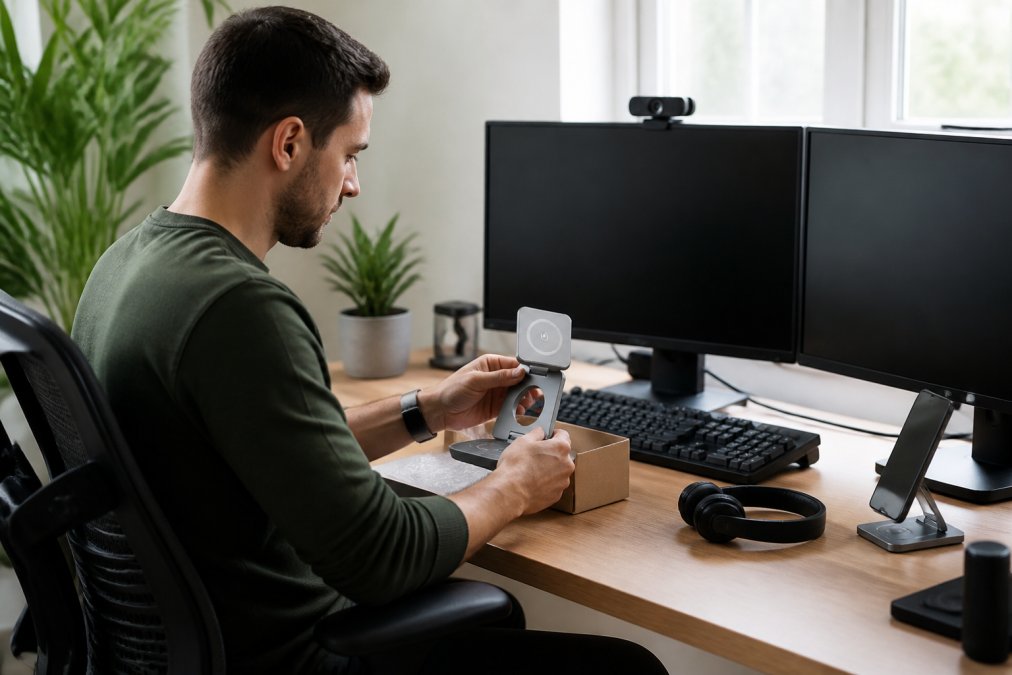
Remote workers who invest in quality essential tech gear report fewer distractions, better posture, and more confident communication with colleagues. This guide walks you through the specific categories of gear that matter most, where to prioritize your budget, and how to avoid common setup mistakes.
Best Tech Accessories for Remote Workers: Core Setup
The foundation of any productive workspace rests on three pillars: comfortable seating, clear visuals, and reliable video presence.
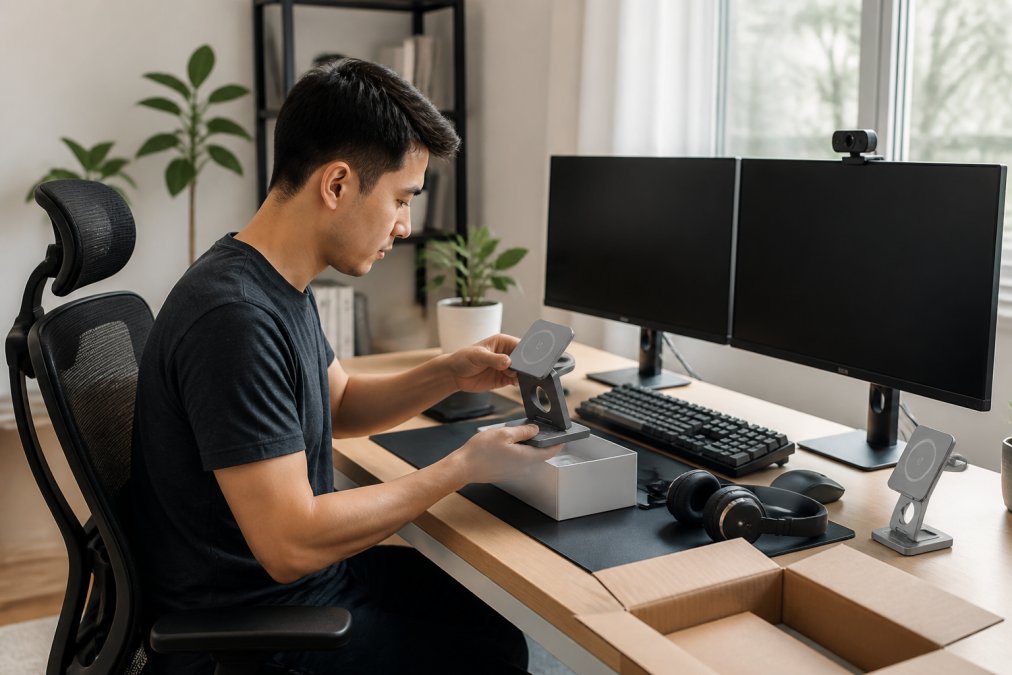
Ergonomic Office Chairs and Seating
An ergonomic office chair is non-negotiable for anyone working from home more than 20 hours per week (osha.gov). Your chair directly affects your spine, shoulders, and focus capacity.
The best ergonomic office chairs for remote work feature adjustable lumbar support that conforms to your lower back curve, seat depth that lets your feet rest flat on the floor with knees at 90 degrees, and armrests positioned so your elbows rest at desk height without shoulder tension. Look for chairs with tilt tension adjustment, not just fixed recline angles. Avoid gaming chairs designed for marathons of sitting in one position, or mesh chairs without proper lumbar support.
High-Performance Monitors and Display Setup
Monitor choice determines whether you're squinting at text or reading comfortably. The sweet spot is 27 inches at 1440p resolution, which gives you screen real estate without requiring your eyes to work harder (peer-reviewed research). Position your monitor an arm's length away, with the top of the screen at or slightly below eye level to prevent neck strain.
If you use a laptop as your primary screen, a monitor arm or stand becomes essential since laptop screens sit too low for proper ergonomics. Brightness should reach at least 300 nits so you can work comfortably even with window light nearby (the CDC).
Professional Webcams and Video Conferencing Gear
Your webcam is your professional face during video calls. Built-in laptop cameras shoot from an unflattering upward angle and often produce grainy, low-light footage. A dedicated webcam positioned at eye level immediately improves how colleagues perceive you.
Look for webcams with at least 1080p resolution and a wide field of view (around 90 degrees). Auto-focus matters more than you'd expect; cheap webcams hunt for focus constantly, which is distracting on video. Position your primary light source in front of you, not behind (which creates silhouettes). A simple ring light or desk lamp with a warm bulb (3000K color temperature) eliminates harsh shadows that make you look tired.
Audio, Input, and Connectivity: Completing Your Workspace
Audio quality determines how clearly people hear you. Input devices shape your workflow speed. Connectivity infrastructure ensures nothing interrupts your work.
Noise-Canceling Headphones and Audio Equipment
Noise-canceling headphones protect you from household distractions and protect your colleagues from hearing your environment. Active noise cancellation (ANC) reduces low-frequency ambient sounds without making you feel isolated.
For remote work, comfort over 8+ hours matters more than bass response. Look for headphones with memory foam ear cups, adjustable headbands, and lightweight designs. Battery life should exceed 30 hours. If you do video calls regularly, a USB condenser microphone positioned 6-8 inches from your mouth eliminates the "talking from far away" problem. Pair it with a shock mount to reduce desk vibrations from typing.
Mechanical and Wireless Keyboards
Mechanical keyboards provide genuine benefits for typing comfort and speed. The tactile feedback helps you maintain consistent keystroke pressure, reducing finger fatigue over long typing sessions. Tactile switches (like Browns) give you a bump at the actuation point, helping you know when the key registered, while remaining reasonably quiet for shared homes.
Keyboard height should allow your wrists to rest straight when typing, not bent upward or downward. A keyboard tray under your desk helps achieve this positioning. Avoid laptop keyboards for extended work, as they force unnatural wrist angles that lead to repetitive strain.
Precision Mice and Trackpads
A good mouse matters more than most people realize. Cheap mice have inconsistent tracking, requiring frequent recalibration. A precision mouse with adjustable DPI (dots per inch) lets you match sensitivity to your workflow. Lower DPI (800-1200) works well for detailed work; higher DPI (3200+) suits fast navigation.
Wireless mice have come far enough that lag is no longer a concern with modern 2.4GHz connections. Your mouse should sit at elbow height with your arm relaxed. A mouse that forces your wrist into an unnatural angle causes strain over weeks.
Ergonomic Home Office Setup Tips for Health and Productivity
Ergonomic setup goes beyond individual pieces of gear. The arrangement and interaction of all components determines whether your setup supports health or undermines it.
Start with your desk height. Your elbows should rest at 90 degrees when your hands are on the keyboard. Standard desk height is 28-30 inches, but your proportions matter. Monitor height comes next: the top of your screen should be at or slightly below eye level, about 20-26 inches from your face. This positioning prevents the forward head posture that causes neck and shoulder pain.
Document holders positioned between your keyboard and monitor reduce neck strain if you reference printed materials. Take regular breaks using the 20-20-20 rule: every 20 minutes, look at something 20 feet away for 20 seconds. Stand up at least once per hour to keep blood flowing.
Posture matters more than any single piece of gear. Sit with your back against the chair, feet flat on the floor, shoulders relaxed. Check your posture every 30 minutes, as it degrades gradually without you noticing.
How to Organize Home Office Cables and Reduce Clutter
Cable chaos creates cognitive load every time you need to plug something in. An organized cable system speeds up your workflow and makes your space feel professional.
Cable Management Strategies
Start by mapping what connects where. Use cable clips or channels to route wires along desk edges and under surfaces. Label each cable at both ends using small tags or a label maker. Color-coded cables simplify troubleshooting: use tape or colored sleeves to mark different cable types, power in one color, data in another, audio in a third.
Velcro cable ties work better than traditional zip ties because you can adjust them as your setup changes. Route cables behind your desk when possible. If cables must cross your workspace, use cable raceways or spiral wraps to contain them.
Wireless Charging and Power Management Solutions
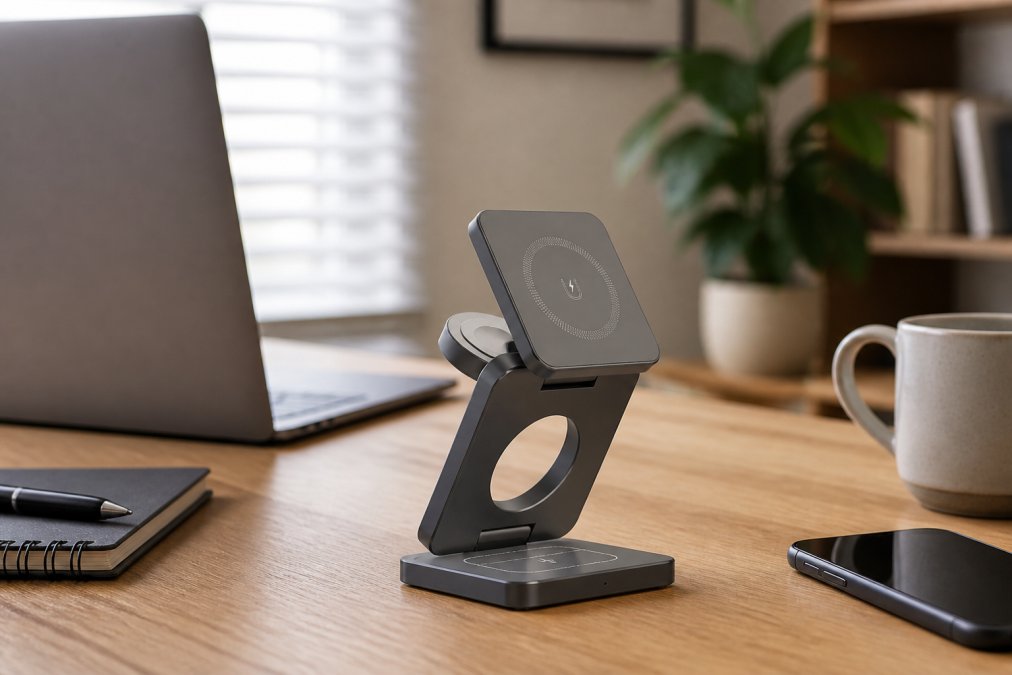
Wireless charging eliminates multiple cable connections and reduces desk clutter significantly. A single charging station can handle your phone, earbuds, and smartwatch simultaneously, replacing three separate cables.
The 3-in-1 Magnetic Wireless Charging Station from Esther Tech Shop ($44.99) consolidates these connections into one device. The magnetic alignment ensures your phone charges reliably every time you set it down. With 15W fast charging and USB-C input, it integrates seamlessly with modern device ecosystems.

Power strips with surge protection prevent damage from electrical spikes while giving you multiple outlets from a single wall socket. A strip with USB ports eliminates the need for separate USB adapters, further reducing cable count.
Budget vs. Pro-Tier Tech: Where to Invest and Where to Save
Not every component deserves equal investment. Strategic spending on high-impact items lets you save on others without sacrificing functionality.
Invest heavily in seating and monitor setup. These directly affect your health and daily comfort. A budget ergonomic chair ($200-300) beats an expensive gaming chair that doesn't support your back. A quality monitor ($250-400) improves your work quality more than budget alternatives.
Invest in audio if you do video calls regularly. A good microphone and headphones ($100-200 combined) transform how professional you sound. Save on peripherals that don't affect your core workflow. A basic wireless mouse ($30-50) works fine if you're not doing precision design work. Avoid spending heavily on trendy gear (RGB lighting, premium aesthetics) while skimping on ergonomics.
Acoustic Treatment and Ambient Lighting for Your Home Office
Sound quality and lighting create the environment where your productivity either thrives or suffers.
Acoustic treatment reduces echo and background noise. Heavy curtains absorb sound better than bare windows. Bookshelves filled with books absorb more sound than empty shelves. A simple acoustic panel behind your desk reduces echo during video calls and makes your space feel less hollow.
Ambient lighting affects your mood and energy levels. Avoid harsh overhead lights that create shadows and cause eye strain. Use a combination of task lighting (desk lamp for focused work) and ambient lighting (soft background light from a window or indirect source). Warm light (3000K) feels relaxing, while cool light (5000K+) promotes alertness. Natural light is superior to artificial light when available; position your desk perpendicular to windows rather than facing them directly or with your back to them.
Flicker-free bulbs and anti-glare screens reduce eye strain during long work sessions.
Docking Stations, Hubs, and Network Connectivity
A docking station consolidates all your connections into a single cable to your laptop. This is particularly valuable if you use a laptop as your primary computer. Look for docks that support your laptop's power requirements; most modern docks deliver 90-100W.
Network connectivity determines your video call quality and file transfer speeds. A Wi-Fi 6 (802.11ax) router provides faster speeds and better range than older standards. For critical work, wired Ethernet beats Wi-Fi. A 25 Mbps connection handles HD video conferencing comfortably. If multiple people in your household use the internet simultaneously, prioritize your work traffic using Quality of Service (QoS) settings on your router.
Building your essential tech gear for home office setup is an investment in your daily experience and long-term health. The gear that matters most, your chair, monitor, microphone, and headphones, directly affects how you feel and perform. At Esther Tech Shop, we understand that quality accessories at fair prices make this investment accessible. Our 24-48 hour shipping guarantee and attentive customer service mean you'll have your setup complete quickly. Start with ergonomic seating and a quality monitor, add audio gear if you do video calls, then optimize with cable management and wireless charging solutions. Your future self will thank you for the focused, comfortable workspace you build today.
Frequently Asked Questions
What are the most essential tech gadgets for a home office?
The core essentials are an ergonomic chair, high-resolution monitor, professional webcam, noise-canceling headphones, mechanical keyboard, precision mouse, and reliable power management. These items directly impact productivity, video conferencing quality, and comfort during long work sessions. Adding a docking station or USB-C hub improves connectivity and workflow optimization.
How do I choose the right tech accessories for remote workers?
Start by identifying your workflow: video conferencing, coding, design, or writing. Prioritize ergonomic gear first (chair, desk height, monitor placement) to prevent strain. Then select peripherals based on your input needs. Consider cable management early, wireless keyboards and charging solutions reduce clutter. Budget-tier options work for general tasks; pro-tier gear suits content creators and streamers needing higher audio fidelity and refresh rates.
What ergonomic home office setup tips actually reduce fatigue?
Position your monitor at eye level, 20-26 inches from your eyes. Keep your keyboard and mouse at elbow height with wrists neutral. Use a chair with lumbar support and adjustable height. Take the 20-20-20 break: every 20 minutes, look at something 20 feet away for 20 seconds. Add ambient lighting to reduce eye strain. These adjustments prevent repetitive strain injuries and maintain focus throughout your workday.
How can wireless charging solutions reduce cable clutter on my desk?
A 3-in-1 magnetic wireless charging station like Esther Tech Shop's 15W Fast Charge model ($44.99) eliminates three separate cables by charging your phone, earbuds, and smartwatch simultaneously. It uses USB-C input, so you only run one cable to power. Pairing wireless peripherals (keyboard, mouse) with a docking station further reduces cable spaghetti while maintaining full multitasking capability and device synchronization.
What's the difference between budget-tier and pro-tier home office tech?
Budget-tier gear handles standard work: email, video calls, document editing. Pro-tier equipment offers higher refresh rates (144Hz+ monitors), superior audio fidelity, mechanical switches with haptic feedback, and better build quality. Content creators and streamers benefit from pro-tier webcams, microphones, and displays. For typical remote work, budget options suffice; invest pro-tier only in tools you use daily for 8+ hours.
How do I organize home office cables without making a mess?
Use cable clips, sleeves, or conduit to bundle wires behind your desk. Label each cable at both ends. Route power cables through a surge-protected power strip positioned out of sight. Switch to wireless peripherals where possible. Implement a docking station to consolidate connections into one USB-C hub. Keep cables short, excess length creates visual clutter. Wireless charging stations eliminate multiple charger cables entirely.
What power management and surge protection should I use?
Use a surge-protected power strip rated for your equipment's total wattage. Look for 4000+ joule surge protection and multiple outlets. Position it near your desk but out of sight. For high-value gear (monitors, computers), consider an uninterruptible power supply (UPS) to protect against sudden shutdowns. USB-C hubs with power delivery simplify charging multiple devices from one connection, reducing outlet strain.
Does acoustic treatment actually improve focus in a home office?
Yes. Soft furnishings (panels, foam, curtains) absorb sound, reducing ambient noise and echo. This improves audio quality during video calls and reduces distractions. Acoustic panels behind your desk and above your monitor are most effective. Combined with noise-canceling headphones, treatment creates a professional audio environment for recording, streaming, or focused work requiring minimal interruption.
This article was written using GrandRanker