 how-to
How to Return Tech Gear Easily: A Step-by-Step Guide
Table of Contents
- Prepare Your Tech Gear for Return
- How to Wipe Company Laptop Before Return
- Remote Employee Equipment Return Policy Essentials
- Shipping Electronics Safely: Packaging and Materials
- Generate and Track Your Return Shipment
- Company Equipment Return Receipt Template and Documentation
- Common Mistakes to Avoid When Returning Tech Gear
- Conclusion
Last Updated: August 10, 2026
Prepare Your Tech Gear for Return
Returning tech equipment becomes straightforward when you know what to expect. Whether you're transitioning out of a role, upgrading hardware, or sending back gear purchased online, proper preparation is key. At Esther Tech Shop, we understand how crucial it is to return tech gear in good condition.
Start by understanding the specific return window and policy that applies to your situation. Different organizations and retailers have different timelines and requirements. Some allow 30 days from purchase, others specify a window from your employment end date.
Check the Return Window and Policy
The return window is the specific timeframe during which you can initiate a return. Most companies and retailers allow between 14 and 90 days, depending on the product category and purchase date. Your return policy outlines what condition the equipment must be in, what documentation you'll need, and whether you're responsible for shipping costs.
Locate your original order confirmation or employment offboarding documentation, which contains the return deadline and specific instructions. If you can't find it, contact customer support immediately. Many organizations require you to request a return authorization before sending anything back, this reference number tracks your specific return through the system.
Check whether your return is eligible for a refund or simply a required equipment return with no monetary exchange. Corporate equipment returns typically involve no refund but may require proof of return for compliance purposes.
Inspect Equipment Condition
Before you pack anything, inspect every piece of equipment carefully. Look for physical damage, missing parts, and functionality issues. Take photos or video of the equipment in its current state, this creates a record that protects you if there's a dispute later.
Check that all original components are present: power adapters, cables, peripherals, documentation, and any included software licenses. Missing items often result in restocking fees or return rejection. Test the equipment to confirm it powers on and functions. Minor cosmetic wear is usually acceptable, but damage that affects functionality may trigger fees or rejection.
How to Wipe Company Laptop Before Return
Before you return any company laptop or device, you must completely remove all personal and sensitive information. A factory reset is essential for protecting both your privacy and the company's data security requirements.
Backup Your Personal Data First
Before you erase anything, back up any personal files you created or downloaded during your tenure. Use an external hard drive, USB flash drive, or cloud storage service like Google Drive or OneDrive.
Create a folder structure on your backup device that mirrors important locations on your laptop. Back up your Desktop, Documents, Downloads, and Pictures folders. If you used email on the device, export important messages and contacts before wiping the system. Be selective about what you back up, don't copy company files, proprietary information, or anything marked confidential.
Factory Reset Your Device
A factory reset erases all data on your device and restores it to its original operating system state. For Windows laptops, go to Settings > System > Recovery and select Reset This PC, choosing "Remove everything" for a complete wipe. For Mac devices, restart your computer, hold Command + R to enter Recovery Mode, select Disk Utility, erase the drive, and reinstall macOS.
The reset process takes 30 minutes to several hours depending on your device's storage capacity. Don't interrupt the process once it starts. Plug your laptop into power and ensure you have a stable internet connection, especially for Mac devices that need to download the operating system during reinstallation.
After the reset completes, verify that the device boots into the initial setup screen rather than your user account. This confirms the factory reset was successful and all your personal data has been removed.
Remote Employee Equipment Return Policy Essentials
Remote employee equipment return policies protect both the worker and the employer. If you're leaving a remote position, your company will have specific requirements for returning laptops, monitors, keyboards, mice, headsets, and any other provided equipment.
The typical remote employee equipment return policy requires you to return all equipment within 5 to 10 business days after your employment ends. Some policies allow you to ship equipment directly; others require you to drop it off at a physical location or arrange a pickup. Your company's HR department or offboarding coordinator will provide the specific method.
Document everything related to the return. Keep copies of shipping receipts, tracking numbers, delivery confirmations, and any email correspondence about the return. This documentation protects you if there's a dispute about whether the equipment was actually returned. Clarify whether you're responsible for shipping costs or if the company covers them before you pay.
Shipping Electronics Safely: Packaging and Materials
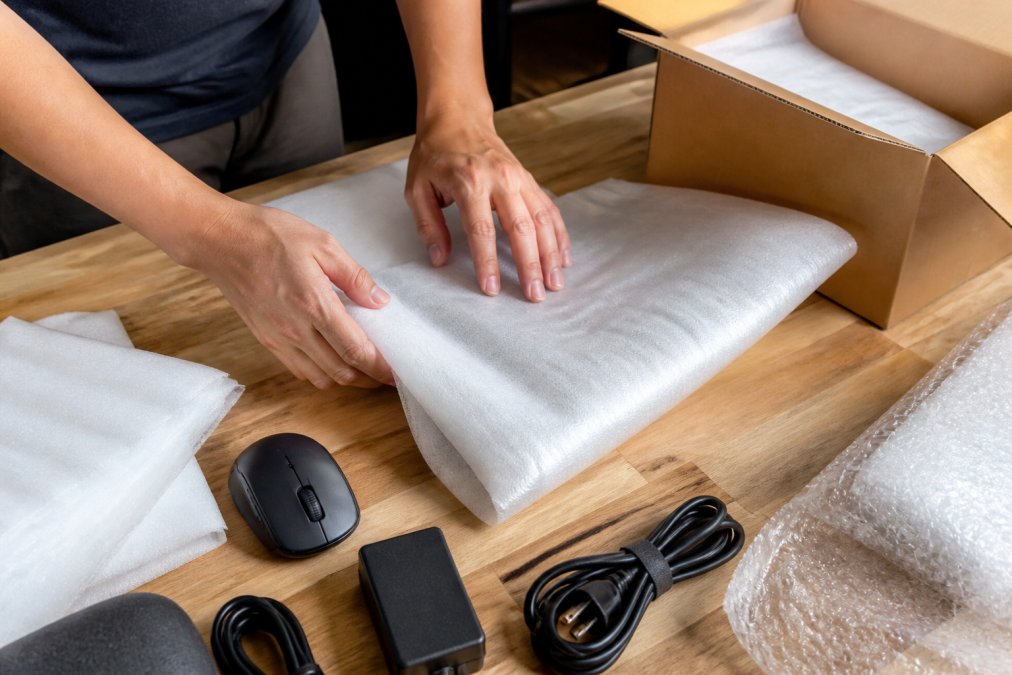
Electronics are fragile and vulnerable to damage during transit. Proper packaging protects your equipment from impact, moisture, and temperature fluctuations.
Use Original Packaging When Available
Original packaging is engineered specifically for the device it contained. If you still have the original box and packaging materials, use them. This is the single best way to ensure your equipment arrives in the same condition it left.
If the original packaging is damaged or missing, contact the manufacturer or retailer. Many companies will sell you replacement packaging materials.
Secure Cables and Peripherals
Loose cables inside a box can tangle, get pinched, or damage the device during transit. Coil each cable neatly and secure it with a velcro cable tie or twist tie. Place cables in a separate compartment or small bag within the larger box to prevent them from shifting during shipping.
Peripherals like mice, keyboards, and headsets should be wrapped individually in bubble wrap or foam. Power adapters and charging cables are often the most fragile components, wrap the adapter in bubble wrap and coil the cable loosely to avoid stress on the connectors.
Generate and Track Your Return Shipment
Once your equipment is packed and ready, you'll need a shipping label and a way to track the package.
Request Your Shipping Label
Contact the company's returns department or check your offboarding documentation for instructions on obtaining a shipping label. If you're returning equipment purchased from Esther Tech Shop, log into your account and navigate to your order history to generate a return label.
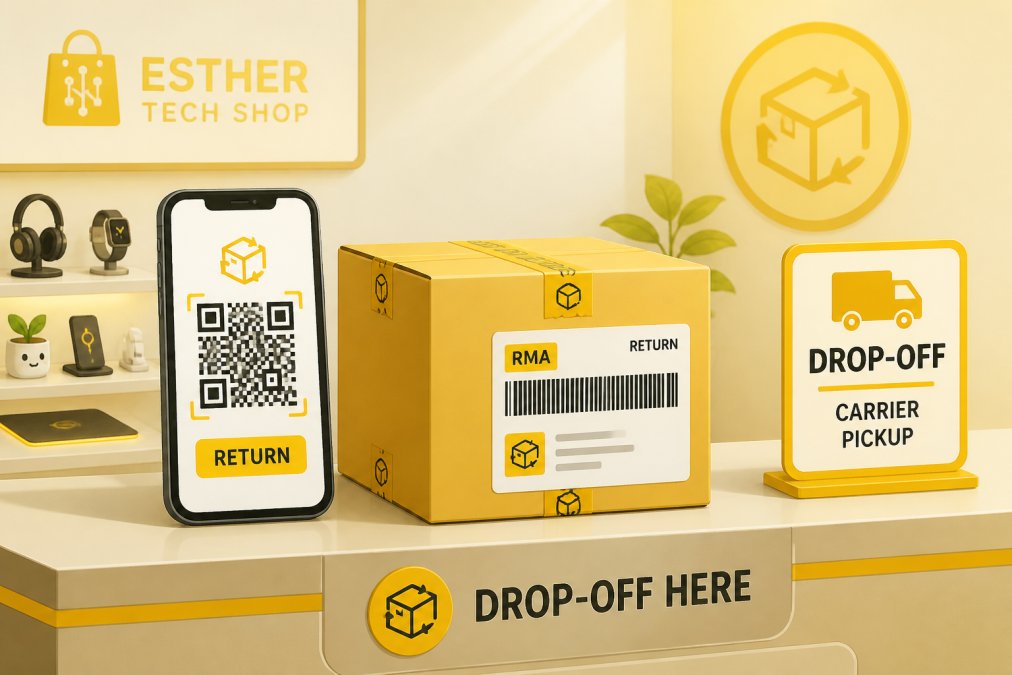
The shipping label will include a tracking number, the return address, and sometimes a QR code. Print the label on standard 8.5 x 11 inch white paper using a regular printer. Attach it securely to the top of your box using clear packing tape, ensuring the label is flat and completely visible.
Use QR Codes for Drop-Off
Modern shipping systems often include QR codes on return labels. These codes simplify the drop-off process by allowing the carrier to scan the code instead of manually entering the tracking number. When you arrive at the drop-off location, show the QR code on your printed label or phone to the staff member.
Find a convenient drop-off location by visiting the carrier's website and entering your zip code. Drop off your package during business hours and request a receipt showing the date and time.
Monitor Tracking and Delivery Confirmation
After you drop off your package, use the tracking number to monitor its progress. Enter the tracking number on the carrier's website or in their mobile app. You'll see updates showing when the package was picked up, scanned at sorting facilities, and out for delivery.
The tracking system will eventually show a delivery confirmation indicating that someone signed for the package at the destination. Take a screenshot of the final delivery confirmation and save it with your other return documentation. If tracking shows the package was delivered but the company hasn't confirmed receipt within a few business days, follow up with customer support.
Company Equipment Return Receipt Template and Documentation
Proper documentation is essential when returning company equipment. Create a simple return receipt that documents what you're returning, the condition, and the date.
EQUIPMENT RETURN RECEIPT
Employee Name: ___________________________ Department: ___________________________ Last Day of Employment: ___________________________ Return Date: ___________________________
Equipment Returned:
- Laptop (Brand/Model): ___________________________
- Monitor (Brand/Size): ___________________________
- Keyboard: ___________________________
- Mouse: ___________________________
- Headset: ___________________________
- Power Adapter: ___________________________
- Cables/Peripherals: ___________________________
Condition Notes: ___________________________
Shipping Carrier: ___________________________ Tracking Number: ___________________________ Drop-off Date: ___________________________
Employee Signature: ___________________________ Date: ___________________________
Keep a copy of this receipt along with your shipping receipt and tracking confirmation. If your company requires you to return equipment through a formal return portal, fill out their form instead. Always maintain your own copy of documentation showing what you returned and when.
Common Mistakes to Avoid When Returning Tech Gear
The most common mistake is failing to back up personal data before wiping the device. You'll lose important files permanently if you skip this step. Always back up first, then factory reset.
Another frequent error is not keeping the original packaging or using inadequate packaging materials. Equipment that arrives damaged may be marked as "not received in acceptable condition," resulting in disputes or fees.
Many people miss the return window entirely. Mark the deadline on your calendar immediately and set a reminder for one week before. Returning equipment after the deadline often results in rejection or return to you at your expense.
Failing to get a tracking number before dropping off your package is another common mistake. Always request a receipt or take a photo of the label showing the tracking number. Without this, you have no proof that you shipped the equipment.
Don't forget to include all original accessories and documentation. Before you seal the box, do a final check against the original equipment list. Skipping the factory reset or only deleting files manually is a serious security mistake, deleted files can often be recovered, leaving your personal data vulnerable.
Returning tech equipment properly protects both you and the company receiving it. The process becomes simple when you follow these steps: prepare your equipment by checking the return window and inspecting condition, back up your personal data and factory reset your device, pack everything securely with original or adequate protective materials, generate your shipping label and use the tracking system to confirm delivery, and maintain documentation throughout the process.
At Esther Tech Shop, we've helped countless customers navigate equipment returns with our straightforward return process and attentive customer service available Monday to Saturday, 9 a.m. - 8 p.m. Whether you're returning equipment you purchased from us or managing a corporate return, the principles remain the same: preparation, documentation, and proper shipping ensure a hassle-free experience. Start the return process early, keep all receipts and tracking information, and follow up to confirm delivery.
Frequently Asked Questions
Do I need to wipe my data before returning a company laptop?
Yes, you should always perform a factory reset or complete data wipe before returning company equipment. This removes all personal and sensitive information, protecting your privacy and ensuring compliance with data security standards. Most company return policies require this step. Back up any personal files first, then use your laptop's built-in reset function (Windows Reset or macOS Erase) to return the device to factory settings.
What is the standard timeline for returning tech gear after resignation?
Most remote employee equipment return policies require equipment to be returned within 5-10 business days of resignation or role termination. Check your company's specific policy document, as timelines vary. The faster you initiate the return process, the sooner you'll receive your return receipt and close out the offboarding process. Delays in returning equipment may affect your final paycheck or benefits.
How do I properly pack electronics for shipping?
Use original packaging if available, or select a box slightly larger than your device with at least 2 inches of protective padding on all sides. Wrap each item (laptop, monitor, power cord, peripherals) individually in bubble wrap or foam padding. Fill gaps with packing peanuts or crumpled paper to prevent shifting during transit. Include a packing slip with your return authorization number and contact information inside the box.
What should I do if my tech gear is damaged upon return?
Document any damage with photos before packing and include a note in the return shipment explaining the condition. Request delivery confirmation and tracking updates so you have proof of the shipment's condition upon arrival. Keep your tracking number and shipping receipt. If damage is significant, contact customer support immediately with photos and your tracking information to discuss liability and insurance coverage options.
This article was written using GrandRanker