 how-to
How to Speed Up Home Office: 7 Steps
Table of Contents
- Assess Your Current Internet Speed and Bandwidth Needs
- Ethernet vs. WiFi for Home Office: Which Connection Method Works Best
- Optimize Router Placement and Reduce Signal Interference
- Configure WiFi Channels and Bands for Better Performance
- Troubleshoot Slow Internet Connection Issues
- Upgrade Your Hardware: Mesh Networks and Network Switches
- Manage Bandwidth and Implement Quality of Service Settings
- Secure Your Home Office Network
Last Updated: August 15, 2026
Assess Your Current Internet Speed and Bandwidth Needs
Run a speed test using a free tool to check your download speed, upload speed, and ping. Download speed determines how quickly you receive data. Upload speed affects video conferencing quality and file uploads. Ping measures latency, the delay between sending a request and receiving a response. High latency creates lag during video calls, even if your download speed looks decent on paper.
Different work scenarios demand different speeds. Video conferencing typically requires 2.5-4 Mbps download and 2.5 Mbps upload for reliable performance. Streaming background content while working needs an additional 5-25 Mbps depending on resolution. File transfers and cloud collaboration benefit from 10+ Mbps upload speeds.
Document your baseline numbers and contact your internet service provider to confirm what you're paying for versus what you're actually receiving. This information becomes essential when troubleshooting later.
Ethernet vs. WiFi for Home Office: Which Connection Method Works Best
The single biggest performance difference you can make is switching from WiFi to Ethernet. A hardwired Ethernet connection eliminates the signal interference, latency, and packet loss that plague wireless networks. Ethernet connections deliver consistent throughput without degradation, while WiFi performance drops as you move away from your router and physical obstacles absorb the signal.
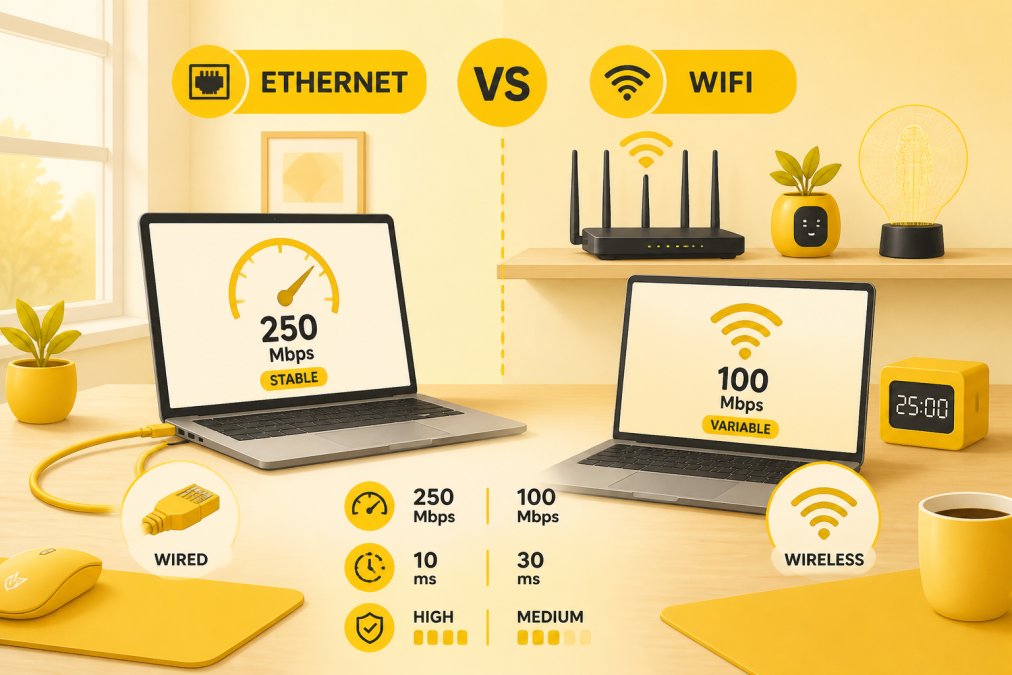
If running Ethernet to your desk isn't practical, consider alternatives. Powerline adapters send internet through your home's electrical wiring, faster than WiFi but slower than Ethernet. MoCA adapters use coaxial cable (cable TV lines) if your home has them installed; they often outperform powerline adapters. Both cost less than running new Ethernet cable through walls.

If you must use WiFi, position your router centrally and elevated. The higher your router sits, the better its signal reaches your workspace. Keep it away from metal objects and appliances that generate electromagnetic interference.
Optimize Router Placement and Reduce Signal Interference
Place your router in a central location at the highest point possible. Routers transmit signals in a roughly spherical pattern, so elevation and centrality matter far more than hiding it away. Physical obstacles like walls, especially those with metal framing or concrete, reduce signal strength significantly.
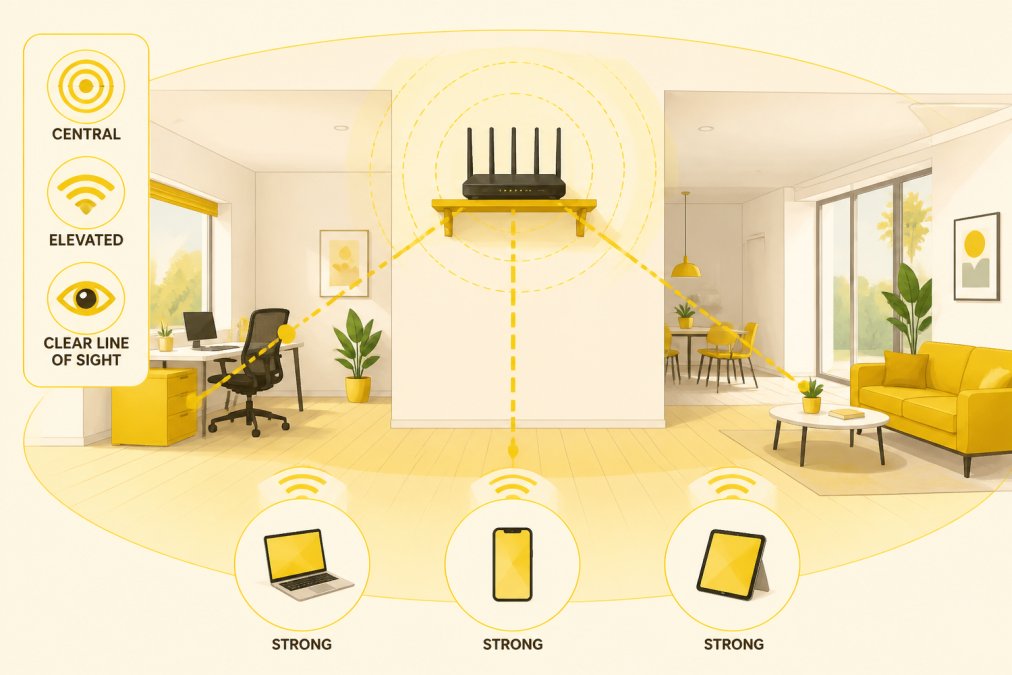
Interference from other devices degrades WiFi performance. Microwaves, cordless phones, baby monitors, and Bluetooth speakers all operate on the 2.4GHz frequency that most WiFi routers use. Keep your router at least six feet away from these devices. Distance matters too, every 30 feet of distance reduces signal strength, and walls cut that distance roughly in half.
Signal interference also comes from neighboring WiFi networks. In apartment buildings or densely populated areas, dozens of networks compete for the same wireless channels, creating packet loss and latency spikes.
Configure WiFi Channels and Bands for Better Performance
WiFi routers broadcast on specific channels within frequency bands. The 2.4GHz band offers longer range but slower speeds and more interference. The 5GHz band provides faster speeds but shorter range. Modern routers support both bands simultaneously, called dual-band operation.
The 2.4GHz band uses 11 available channels in the United States, but only three don't overlap: 1, 6, and 11. Most routers default to channel 1 or 6, which are typically the most crowded in residential areas. Use a WiFi analyzer app to scan which channels your neighbors are using and select a channel with the least congestion. This simple change often improves performance noticeably.
The 5GHz band offers more channels and less interference but reduced range. If your workspace is close to your router, prioritize 5GHz. Channel bandwidth also matters, wider channels (40MHz or 80MHz) offer faster speeds but increase interference. Narrower channels (20MHz) are slower but more stable in congested environments.
Troubleshoot Slow Internet Connection Issues
Start by restarting your router. Power it off, wait 30 seconds, and power it back on. This clears temporary memory issues and reconnects to your internet service provider. Many connection problems resolve with this simple step.
Check how many devices connect to your network. Each connected device consumes bandwidth. Disconnect devices you're not actively using. Smart home devices, security cameras, and streaming services running in background consume significant bandwidth.
Run another speed test from your workspace and compare it to your earlier baseline. If speeds dropped significantly, something changed. Packet loss indicates network instability, use a ping test to measure it. If more than 1-2% of packets are lost, you have a connectivity problem.
Check your router's firmware version and update it if necessary. Outdated firmware sometimes causes mysterious performance issues that updates resolve immediately. If problems persist, try connecting directly to your modem with an Ethernet cable, bypassing your router entirely. If speeds improve dramatically, your router is the problem.
Upgrade Your Hardware: Mesh Networks and Network Switches
Single routers struggle in large homes or those with many walls. Mesh networks solve this by using multiple access points that work together. Your devices automatically connect to the strongest access point, eliminating dead zones.
Mesh systems cost more than traditional routers but deliver dramatically better coverage.
Consider your actual needs before upgrading. Many home office setups work fine with a standard router and one Ethernet connection. Upgrading to mesh or switches makes sense if you have dead zones, multiple devices needing hardwired connections, or consistently poor performance despite optimization efforts.

Manage Bandwidth and Implement Quality of Service Settings
Quality of Service (QoS) settings prioritize important traffic over less critical data. Video conferencing receives priority over background cloud backups. Most modern routers include QoS settings in their admin interface. Set video conferencing applications to high priority and entertainment streaming to low priority.
Bandwidth management also means being intentional about what runs simultaneously. Close unnecessary browser tabs. Pause cloud backups during important meetings. Stop automatic updates while video conferencing. Monitor which applications consume the most bandwidth and disable unnecessary background activity.
Implement a simple rule: one primary task per network connection. If you're video conferencing, don't simultaneously download large files or stream video.
Secure Your Home Office Network
A secure network is a performant network. Unsecured WiFi networks attract bandwidth thieves who consume your bandwidth and potentially compromise your security. Change your router's default password immediately, default credentials are publicly available online.
Enable WPA3 encryption if your router supports it. WPA3 is the latest WiFi security standard and provides the strongest protection. If your router only supports WPA2, that's acceptable but less secure. Never use WEP or WPA without numbers.
Create a strong WiFi password using a mix of uppercase, lowercase, numbers, and symbols. Avoid dictionary words or predictable patterns. Enable your router's firewall feature, most routers include built-in firewalls that block unauthorized incoming connections. Disable WPS (WiFi Protected Setup) if your router has it, as it has known security vulnerabilities.
Speeding up your home office requires addressing multiple factors, connection type, router placement, channel optimization, and hardware limitations all contribute to performance. Start with the fundamentals: test your baseline speed, switch to Ethernet if possible, and optimize your router placement. These changes often deliver immediate improvements without spending money.
When optimization reaches its limits, upgrade strategically. At Esther Tech Shop, we understand that a productive home office starts with reliable connectivity. Our curated selection of networking accessories and ergonomic stands helps you build a workspace that supports your performance. The UGREEN Portable Laptop Stand with Elevated Design positions your screen at eye level while the Multi-Functional Computer Monitor Stand with USB Hub organizes your desk while improving cable management. Both stands work seamlessly with hardwired Ethernet setups, eliminating the need for wireless connectivity in your primary work area. Visit Esther Tech Shop today to find the accessories that complete your optimized home office setup.

| Optimization Step | Impact | Difficulty | Cost |
|---|---|---|---|
| Test baseline speed | Identifies actual problems | Very Easy | Free |
| Switch to Ethernet | Eliminates WiFi latency | Easy | $15-50 |
| Optimize router placement | Improves signal strength | Easy | Free |
| Configure WiFi channels | Reduces interference | Moderate | Free |
| Upgrade router firmware | Fixes bugs and improves performance | Easy | Free |
| Implement QoS settings | Prioritizes important traffic | Moderate | Free |
| Install mesh network | Eliminates dead zones | Moderate | $150-400 |
| Add network switch | Enables multiple hardwired devices | Easy | $20-60 |
Frequently Asked Questions
What is a good internet speed for working from home?
For video conferencing and general remote work, aim for at least 5-10 Mbps download speed and 2.5 Mbps upload speed per person. If you're handling large file transfers, streaming, or running multiple applications simultaneously, 25 Mbps download and 5 Mbps upload provides a comfortable buffer. Gigabit speeds (1000 Mbps) eliminate speed as a bottleneck entirely, though most remote workers don't need that level of throughput for typical tasks.
Does using Ethernet instead of WiFi really make a difference for home office speed?
Yes. Ethernet connections deliver lower latency, zero packet loss, and consistent throughput compared to WiFi. A hardwired Ethernet cable eliminates jitter and signal interference, which is why it's the best choice for video conferencing and real-time collaboration. WiFi works fine for most tasks, but Ethernet guarantees the most stable connection if your desk location allows it.
How can I troubleshoot slow internet connection problems in my home office?
Start by checking your download and upload speeds using a speed test tool. Restart your router and modem. Move closer to your WiFi router to rule out signal strength issues. Reduce channel congestion by switching to a less crowded WiFi channel. Disable background applications consuming bandwidth, and check if firmware updates are available for your router. If problems persist, contact your internet service provider to confirm your plan's advertised speed matches what you're receiving.
What's the difference between powerline adapters and MoCA adapters for extending connectivity?
Powerline adapters transmit data through your home's electrical wiring, offering a wireless-free way to extend connectivity to distant rooms without running cables. MoCA adapters use your coaxial cable lines (typically from cable internet). MoCA generally provides faster throughput and lower latency than powerline adapters, but requires existing coax lines. Both are alternatives to mesh networks when running Ethernet cables isn't practical.
This article was written using GrandRanker