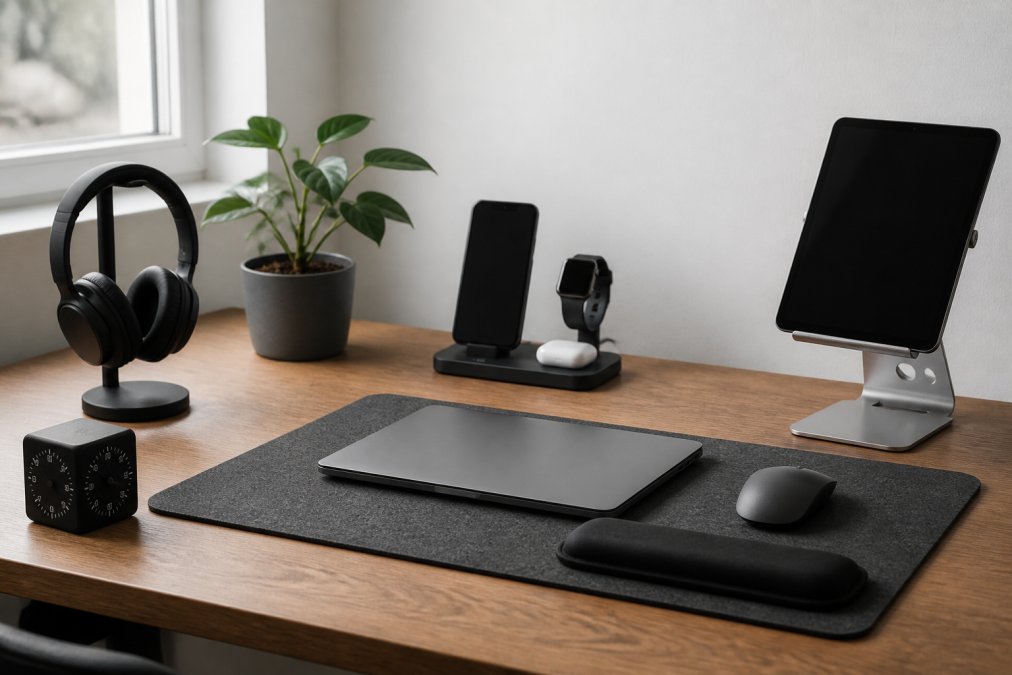
 listicle
Minimalist Desk Setup Essentials 2026
Table of Contents
- What Makes a Minimalist Desk Setup Work
- Best Cable Management Solutions for Your Desk
- Minimalist Desk Organization Tips That Actually Work
- Ergonomic Essentials for a Productive Workspace
- How to Build a Productive Workspace on Any Budget
- Lighting and Ambiance for Focus Mode
- Digital Minimalism and Software Workflows
- Conclusion
Last Updated: August 11, 2026
What Makes a Minimalist Desk Setup Work
A minimalist desk setup strips away everything except what you actually use, then organizes what remains with intentional purpose. The goal isn't emptiness for its own sake, it's eliminating visual noise so your focus can stay on the work.
Clutter creates cognitive load. Every cable, stray object, and visual distraction competes for your attention. When your workspace ergonomics align with this philosophy, you gain better posture, reduced strain, and fewer mental distractions.
The minimalist desk setup essentials for 2026 have matured. Wireless charging, compact monitor arms, and cable management solutions now deliver both aesthetics and functionality without compromise. What separates a functional minimalist desk from a cluttered one: intentional cable routing, vertical space use, a single focal point (usually the monitor), and multi-device charging consolidated into one location.
Best Cable Management Solutions for Your Desk
Reduce Visual Noise With Cable Organization
Cables are the primary culprit behind visual clutter. A single desk with three devices can generate eight to twelve separate cables without deliberate routing.
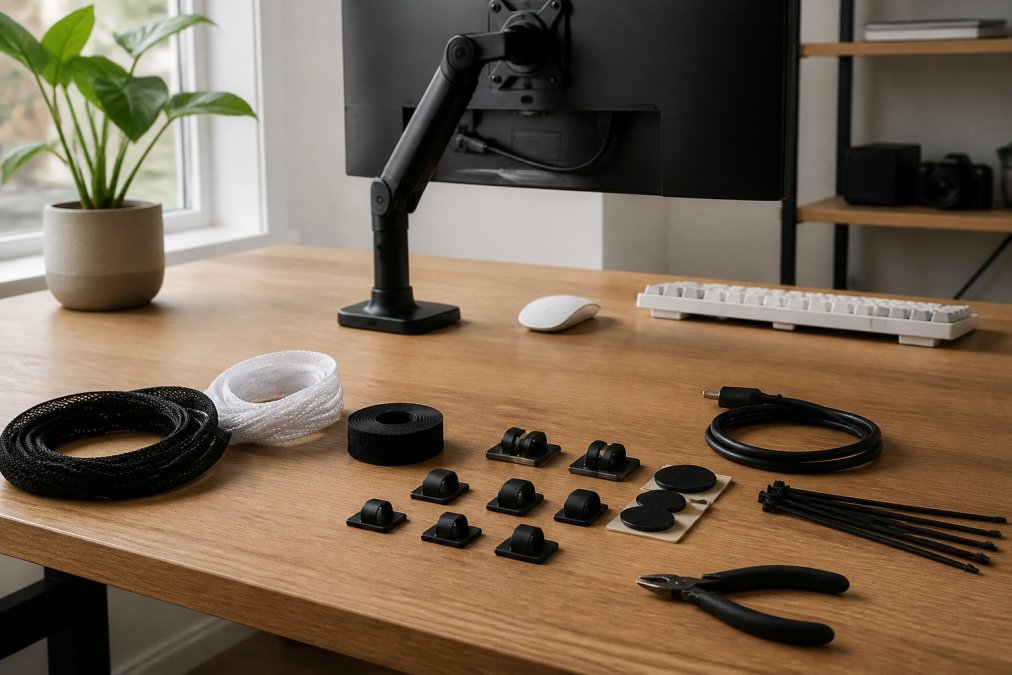
Cable sleeves bundle multiple wires into a single fabric tube, reducing visual count dramatically. Route them behind your monitor or along the back edge of your desk where they're invisible. Cable clips anchor them to the underside of your desk surface, preventing tangling.
For a truly clean setup, run all cables through a cable tray mounted underneath your desk. This creates a dedicated pathway for wires while keeping your desktop completely clear.
Mount your power strips on the back of your desk or on the wall behind it, keeping the strip itself out of view. Wireless peripherals eliminate entire categories of cables, a wireless keyboard and mouse remove two major visual offenders immediately.
Label cables at both ends using small adhesive tags so you know what connects where. This prevents confusion during troubleshooting or reconfiguration.
Multi-Device Charging Without the Clutter
Multiple personal devices mean multiple chargers scattered across your desk. Consolidate this into a single charging station using a multi-port power adapter or dedicated charging hub. A power bank like the Anker 737 Power Bank can handle laptop charging plus two additional devices simultaneously, and is available for around $70-$120.
Wireless charging eliminates cable clutter for phones and compatible devices. A wireless charging pad occupies the same footprint as a mouse pad but charges your phone without adding a visible cable. The 15W Magnetic Wireless Charger Mouse Pad from Esther Tech Shop combines both functions, reducing your total desktop item count.

Position your charging station in one corner of your desk or on a monitor stand shelf. This creates a designated zone for power management rather than having chargers scattered across your work surface.
Minimalist Desk Organization Tips That Actually Work

Everything visible on your desktop should either be actively in use or essential to your workflow. Everything else goes into storage, mounted vertically, or hidden behind your monitor.
Sort items into three groups: daily use (keyboard, mouse, monitor), occasional use (external hard drive, headphones), and everything else. Daily-use items stay on the surface. Occasional items move to a desk drawer or shelf. Everything else leaves your workspace entirely.
The focal point of your minimalist desk setup is your monitor. Everything else should support it without competing for attention.
Vertical Space and Monitor Mounting
Your desk surface is premium real estate. Use vertical space instead.
A monitor arm frees up the desk real estate that a monitor stand would occupy. The MXTARK Computer Arm Support provides rotating features and adjustable height, letting you position your screen at the exact ergonomic angle without consuming surface space.
Shelving above your desk creates additional storage without eating into your work area. Mount a thin shelf twelve inches above your monitor to hold occasional-use items.
A monitor stand with integrated storage serves double duty. The Multi-Functional Computer Monitor Stand with USB Hub from Esther Tech Shop elevates your monitor while providing drawer storage underneath for cables and adapters.
Wall-mounted cable management boxes hide power strips and excess cables completely, creating a dedicated zone for all power infrastructure.
Desktop Surface and Focal Point Design
Your desktop surface should emphasize your monitor as the focal point. Everything else should recede visually.
A desk mat defines the workspace and creates visual boundaries. The Customizable Large Mouse Pad for Desk Use establishes a clear work zone while protecting your desk surface. Choose a neutral color that doesn't compete with your monitor.
Position your keyboard and mouse on the desk mat, centered below your monitor. This creates a natural, symmetrical focal point. Remove decorative items from your work surface.
Keep your desk surface itself neutral. A light wood finish, white surface, or matte black background works better than busy patterns. Your monitor and keyboard should be the only visual anchors.
Ergonomic Essentials for a Productive Workspace
Ergonomic Keyboard and Mouse Setup
Your keyboard should sit at a height where your elbows are at a 90-degree angle when your arms rest naturally. This usually means your keyboard is slightly below desk height, around 28-29 inches for a standard 30-inch desk.
The Logitech MX Master 3S provides precision tracking and customizable buttons that reduce repetitive clicking motions. Its ergonomic shape supports your hand in a natural position.
Your mouse should be positioned directly beside your keyboard at the same height. A mouse pad with a wrist rest like the Mouse Memory Cotton Wrist Pad from Esther Tech Shop provides support during extended work sessions.
The Bluetooth Silent Rechargeable Wireless Mouse eliminates cable strain while silent buttons reduce cumulative stress. Position both peripherals close to your body, within six inches of your torso for optimal ergonomics.
Monitor Positioning and Laptop Stands
Your monitor should be positioned so the top of the screen is at or slightly below eye level when you're sitting upright. This prevents neck strain throughout your workday.
If you use a laptop as your primary screen, it sits too low. The UGREEN Portable Laptop Stand with Elevated Design raises your laptop screen to eye level while creating airflow underneath for cooling. Once elevated, you'll need an external keyboard and mouse.

Your screen should be roughly an arm's length away (20-26 inches from your eyes). This reduces eye strain and prevents forward leaning.
Monitor arms provide adjustability without consuming desk space. They let you tilt, swivel, and adjust height without moving the monitor itself.
How to Build a Productive Workspace on Any Budget
A productive workspace doesn't require a large budget. It requires intentional choices about what stays visible and what gets hidden.
Start with the essentials: a functional desk, a comfortable chair, and proper monitor height. If you have $200 to spend, invest it in a monitor arm and cable management solutions before buying aesthetic accessories.
Budget-Friendly Minimalist DIY Hacks
Cable management doesn't require expensive solutions. Use velcro cable ties (under $10 for a pack of twenty) to bundle cables together. Route them behind your desk using adhesive cable clips mounted to the underside of your desk surface.
Create a charging station using a power strip and a small box. Mount the power strip to the back of your desk or wall, then place a cardboard box underneath it to corral cables.
Use drawer dividers to organize small items in your desk drawers. Mount shelves using floating shelf brackets and reclaimed wood. A single 24-inch floating shelf costs $30-50 and provides substantial storage.
Repurpose items you already own. Before buying anything new, ask whether you can solve the problem with what you already have or with a budget alternative.
Sustainable and Eco-Friendly Materials
Minimalist desk setups align naturally with sustainability because they use less overall. Fewer items means less consumption and less waste.
Choose desk accessories made from sustainable materials. Look for products using recycled plastics, bamboo, or responsibly sourced wood. The Customizable Large Mouse Pad for Desk Use uses materials that reduce environmental impact.

Wireless charging reduces e-waste by eliminating the need for multiple charging cables that wear out and get discarded. The 3 in 1 Wireless Charger Stand for iPhone consolidates three separate charging solutions into one device.
When you do buy accessories, choose quality items that last. An expensive monitor arm that functions for five years creates less waste than three cheap arms you replace annually.
Lighting and Ambiance for Focus Mode
Proper lighting transforms your workspace from merely functional to genuinely supportive of deep work.
Screen glare disrupts focus and causes eye strain. Task lighting positioned to illuminate your work surface without reflecting off your monitor solves this. The BenQ ScreenBar Halo mounts directly to your monitor and provides glare-free illumination calibrated to your screen's brightness, and is available for around $179.
Ambient lighting should be soft and indirect. Avoid harsh overhead fluorescent lights. Use diffused lighting that fills your space evenly. A single lamp positioned behind or to the side of your monitor creates gentle illumination without screen glare.
Color temperature matters for focus. Cooler light (5000K-6500K) promotes alertness during work hours. Warmer light (2700K-3000K) supports relaxation during breaks. Adjustable lighting lets you match your light to your task.
Digital Minimalism and Software Workflows
Physical minimalism means nothing if your digital environment is chaotic. Your software workflow should reflect the same principles as your physical desk setup.
Organize your desktop by removing everything except current projects. Archive completed work into folders. Close applications you're not actively using, each open window consumes mental energy.
Use focus mode or do-not-disturb settings during deep work sessions. Disable notifications from non-essential applications. Batch-check email at scheduled times instead.
Keyboard shortcuts reduce mouse movement and keep your hands in the optimal typing position. Learn the shortcuts for your most-used applications.
Your file structure should mirror your physical organization. Create a clear folder hierarchy: Projects > [Project Name] > [Deliverables].
Close browser tabs you're not actively using. Use bookmarks or a read-later service for pages you might need later.
Building a minimalist desk setup means recognizing that every object, cable, and software window either supports your work or distracts from it. The professionals who maintain the most productive workspaces aren't the ones with the most equipment, they're the ones who've eliminated everything except what they actually need.
Esther Tech Shop provides the accessories that make this possible: monitor stands that free up desk space, wireless charging solutions that eliminate cable clutter, and cable management products that keep your setup organized. With fast shipping guaranteed within 24-48 hours and attentive customer service available Monday to Saturday, 9 a.m. - 8 p.m., you can build your minimalist desk setup without the usual friction of online shopping. Start with one essential, a monitor arm, a cable management solution, or a wireless charging pad, and build from there.
Frequently Asked Questions
What are the core components of a minimalist desk setup?
A minimalist desk setup includes four essentials: a clean desk surface with a quality desk mat, a monitor arm or stand to elevate your screen, wireless peripherals (keyboard and mouse) to eliminate cable clutter, and a multi-device charging station. Add task lighting mounted above your monitor, and organize cables with clips or sleeves. The goal is to keep only items you use daily visible on your desktop surface, storing everything else in drawers or vertical storage.
How can I hide cables in a minimalist desk setup?
Use cable management solutions like cable sleeves, clips, and routing boxes to bundle wires together and direct them behind or under your desk. A cable box keeps power strips and excess cables out of sight. Route cables vertically along monitor arms or desk legs. Wireless peripherals eliminate many cables entirely. The Customizable Large Mouse Pad from Esther Tech Shop ($67.25) provides a defined workspace boundary that helps organize cables around the mat's edges. Cable ties and magnetic clips keep remaining cables tidy and out of the visual field.
What wireless peripheral integration works best for productivity?
Wireless keyboards and mice eliminate desk clutter while maintaining responsiveness. Mechanical wireless keyboards like the Logitech G613 ($379.93) offer excellent tactile feedback and long battery life. A wireless mouse with customizable buttons lets you create app-specific shortcuts for faster workflow. Pair these with a multi-device charging station to consolidate power needs. Test connectivity on your devices before purchasing, ensure your wireless peripherals support Bluetooth or USB receivers compatible with your laptop, desktop, or tablet setup.
Is a minimalist desk setup suitable for gaming or content creation?
Yes. A minimalist desk setup works for gaming and streaming by prioritizing essential tools and eliminating visual noise. Use a monitor arm to free up desk real estate, add a wireless mechanical keyboard for responsiveness, and keep your microphone and lighting equipment on dedicated stands. The MXTARK Computer Arm Support ($111.02) rotates to adjust monitor or equipment angles. Cable management keeps your setup looking professional on camera. Focus mode, hiding non-essential windows and notifications, maintains mental clarity during long creative sessions while your physical workspace stays organized.
This article was written using GrandRanker